how to manage client contacts
How to Manage Client Contacts in LibroKeeper
A practical, plain-English guide to organizing client contacts so invoicing, communications, and year-end records stay clean and efficient.
By LibroKeeper Editorial Team · Published Aug 21, 2026 · Updated Aug 21, 2026
Practical guidance from the team building LibroKeeper for business owners and bookkeeping professionals.
# How to Manage Client Contacts in LibroKeeper
Managing client contacts is a foundational part of small-business bookkeeping. Clean, well-organized contact records help you find the right invoice, map payments to the right client, and prepare tidy year-end reports.
This guide walks you through practical, plain-English steps for managing client contacts in LibroKeeper, with simple workflows you can start today.
Key concepts to understand
- What counts as a client contact: name (individual or company), email, phone, mailing address, and payment terms. You may also track a tax ID if applicable.
- How contacts tie to invoices, ledgers, and receipts: each contact links to related records for quick access and accurate reporting.
- Privacy and data organization basics: keep sensitive details protected and use consistent naming conventions.
Step-by-step guide: set up and organize client contacts in LibroKeeper
- Create a new contact: fill fields such as name, company, email, phone, address, and tax ID if applicable.
- Add multiple contact points: designate a billing contact, a primary contact, and add notes as needed.
- Attach related ledgers and invoices: link to the client’s ledgers and individual invoices for fast access.
- Use tags or groups: categorize clients (e.g., “VIP client,” “new client,” “one-time project”).
- Import contacts from existing lists or CSV: map fields to the appropriate contact fields in LibroKeeper.
Best practices for clean, useful contact records
- Keep contact details up to date; set reminders for periodic reviews.
- Use consistent naming and recording conventions across all contacts.
- Link contacts to projects, invoices, and payments for rich contextual history.
- Protect sensitive information; follow basic privacy practices and access controls.
Practical workflows you can use
- Client onboarding checklist: record contact details, set preferred communication method, and schedule the first invoice.
- Invoicing and payment workflow: locate the contact quickly, review past invoices, and track outstanding amounts.
- Year-end cleanup: review contacts with no activity and archive or remove as needed.
Common pitfalls and how to avoid them
- Duplicate contacts: use deduplication checks or merge capabilities.
- Outdated contact info: schedule periodic updates.
- Too many fields: prioritize essentials and avoid overloading records.
Quick-start checklist (10 minutes to a better contact system)
- Create/verify primary contact fields
- Link to at least one invoice or ledger
- Add at least one note or tag
- Run a quick deduplication pass
Example scenario (concrete use case)
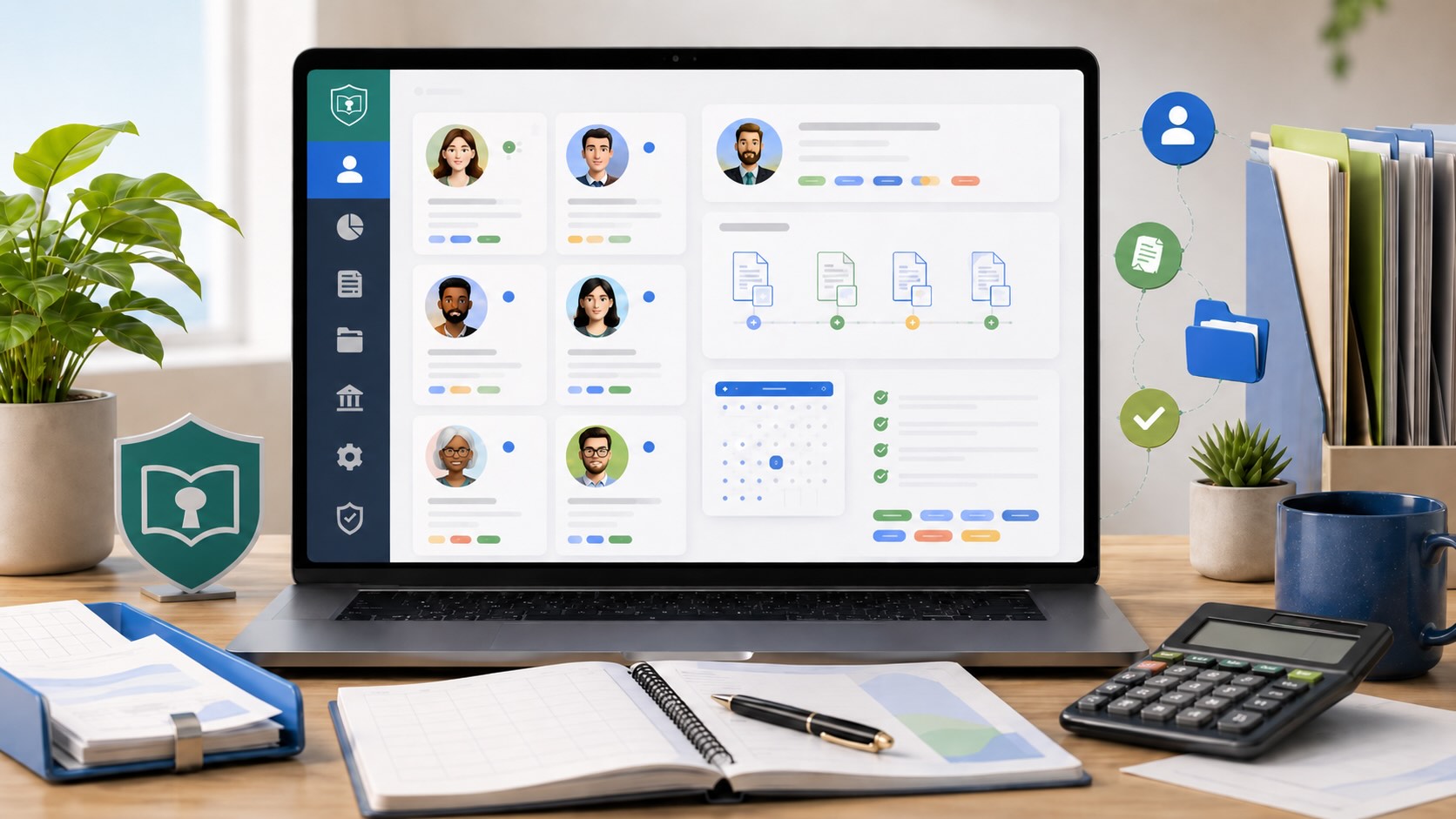
A consultant tracks a client with multiple projects. All invoices and receipts are linked to the client record for easy year-end review. The client appears in LibroKeeper with a clear contact card, linked ledgers, and the related invoices visible from a single view.
Frequently asked questions (FAQ)
- How do I merge duplicate contacts?
- Can I export client contact data?
- How do I segment clients for emailing or reporting?
Tax-related note and disclaimer
Tax topics are general guidance. Consult a tax professional for specific advice. Organized contacts support tax-ready records when invoicing and receipts are neatly linked.
Practical examples and templates (optional)
- Sample contact template fields: name, company, email, phone, address, payment terms, tax ID, notes, tags.
- Simple CSV column mapping example: Name, Company, Email, Phone, Address, TaxID, Terms, Notes, Tags.
Call to action
Try organizing your first 5 client contacts in LibroKeeper today. If you’d like more guidance, check out our quick-start resources and templates, and tell us how it’s working for you.
For more on practical bookkeeping workflows, see our articles on [small business bookkeeping](/small-business-bookkeeping) and explore how LibroKeeper compares to spreadsheets in our guide [LibroKeeper vs spreadsheets](/librokeeper-vs-spreadsheets).
If you’re ready to take control now, start with our self-managed setup and onboard clients quickly: [Start Self-Managed](/self-managed/signup).